
Featured Products
Must have products from our top sellers
Best Seller
Must have products from our top sellers
New Arrivals
Brand new products from top designers




Curabitur non tristique tortor. Vestibulum aliquet suscipit ipsum in volutpat. Donec vel lacinia sem, vitae semper nulla. In hac habitasse platea dictumst. Mauris consectetur est et nibh sadip hendrerit bibendum.

Proin blandit metus vel magna dignissim varius. Morbi enim lorem, sollicitudin vitae ante nec, rutrum venenatis neque. In mi augue, iaculis nec dui ac, condimentum consequat velit. Ut et metus justo.
From Our Blog
The latest Classic Shop news
Open Your Design
Open your design in CorelDRAW (or any design software). This method works well for designs that are mostly white.Add a Small Colored Dot
Insert a small dot in any color (red often works best). Make it as tiny as possible so it won’t interfere with your design.Place the Dot in a Corner
Position the dot in a corner or a discreet part of your design. This trick allows ACRORIP to recognize “color” in the file, which prevents the error from showing up.
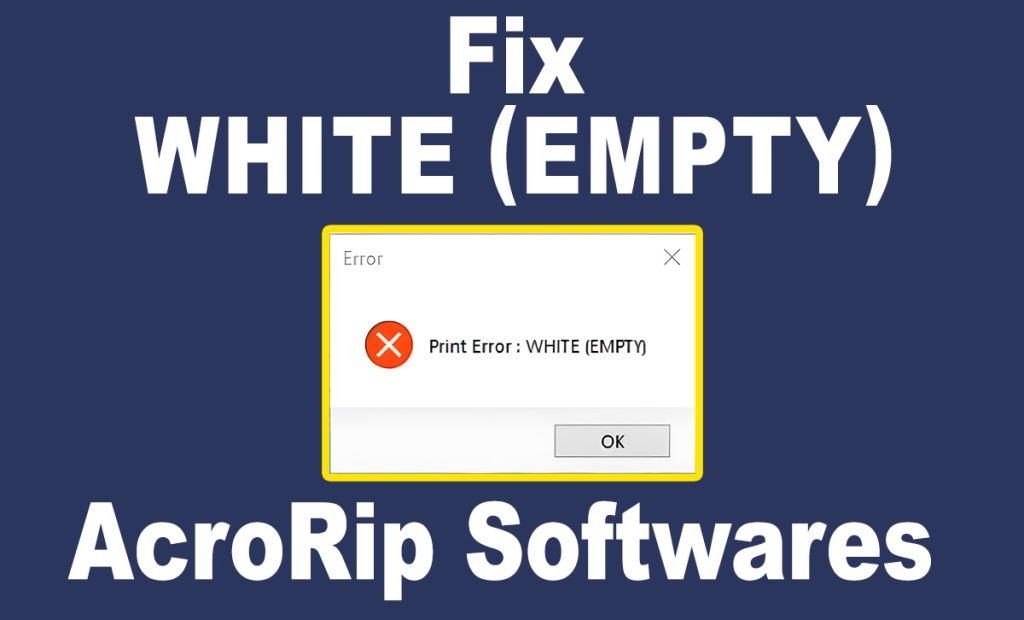
Getting the “Color Missing” or “White Missing” error in ACRORIP? This common issue can disrupt your printing workflow, especially if you’re using white ink on dark surfaces. Fortunately, there’s a quick and easy fix.
Why Does This Error Happen?
ACRORIP can sometimes misinterpret designs with little or no color information, thinking there’s nothing to print. This is especially common when printing all-white designs, causing the “Color Missing” or “White Missing” error.
Quick Fix: Add a Tiny Dot in Any Color
Follow these steps using CorelDRAW or any design software:
Export and Print
Export your design with the colored dot and load it into ACRORIP. You should no longer see the error, and your print job will proceed as expected.
Final Tip
If the error persists, check the dot’s placement and ensure it’s saved with your design. This minor adjustment should solve the issue, allowing ACRORIP to recognize your file’s color data and print without interruptions.
With this quick fix, you can get back to printing in no time!

About Nlsdodoles
I’m a passionate graphic designer and tech enthusiast dedicated to creating innovative solutions that simplify everyday tasks. With hands-on experience in software development, product customization, and web-based business solutions, I strive to make technology accessible and useful for all users. Follow along for practical tips, and feel free to reach out with questions or ideas!

FEATURED
ON SALE
-
 Acrorip 10.3 DTG and DTF Rip software-No USB Dongle Original price was: $150.$70Current price is: $70.
 -
 Acrorip 10.5.2 DTG and DTF Rip software-No USB Dongle-Mac os Version Original price was: $300.$150Current price is: $150.
 -
 Creative Vintage Font Duo Original price was: $30.$10Current price is: $10.
TOP RATED
LATEST REVIEWS
BRAND LOGOS